
With the help of MockGo, you can easily change your device's GPS location and simulate natural movement to have more fun with location-based apps and games. This is a complete guide for using MockGo. Here, you will learn how to:
- Teleport the GPS location to anywhere in the world
- Simulate one-stop movement
- Simulate multi-stop movement
- Use joystick feature
- Use multi-device management
- Import GPX file
- Use more features: cooldown timer, realistic mode...
To get started, you'll need to download and install MockGo onto your computer.
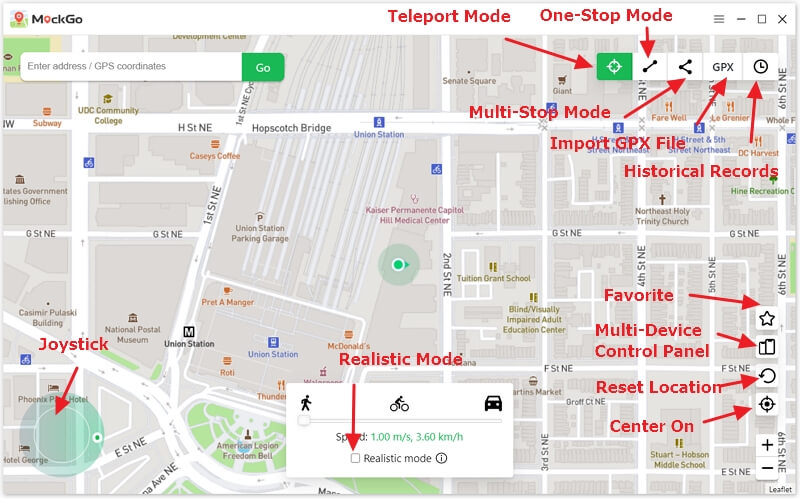
Overview of MockGo:
How to Connect Your Device
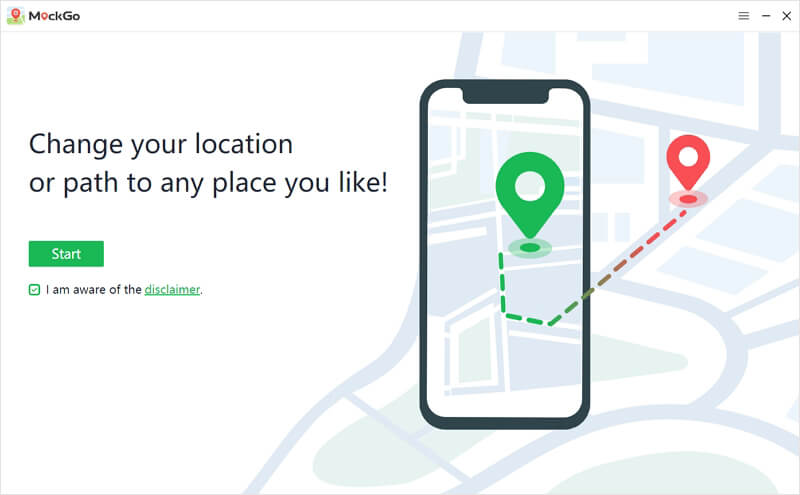
Launch MockGo on your computer and click "Start" to proceed.
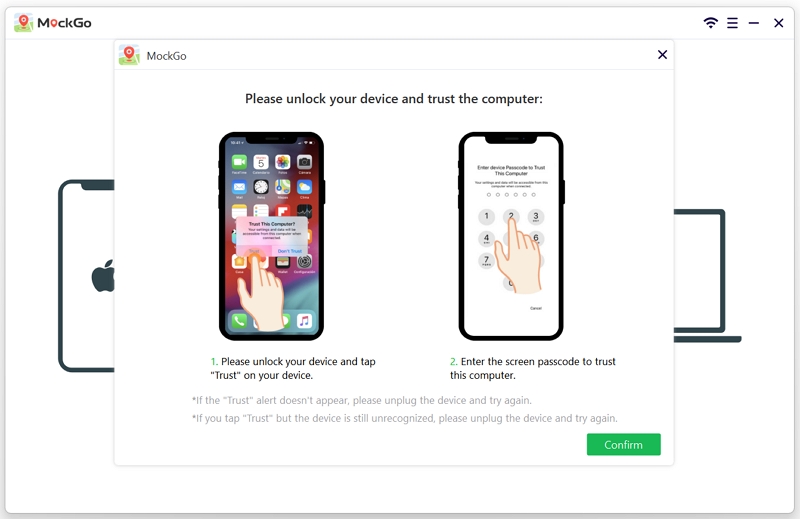
Then, connect your iOS device to the computer using the USB cable, unlock it and tap "Trust" on your device.
If your device is running iOS 17 or iOS 16, please follow the additional steps outlined below to ensure successful connection:
Connect the device running iOS 17 on Windows
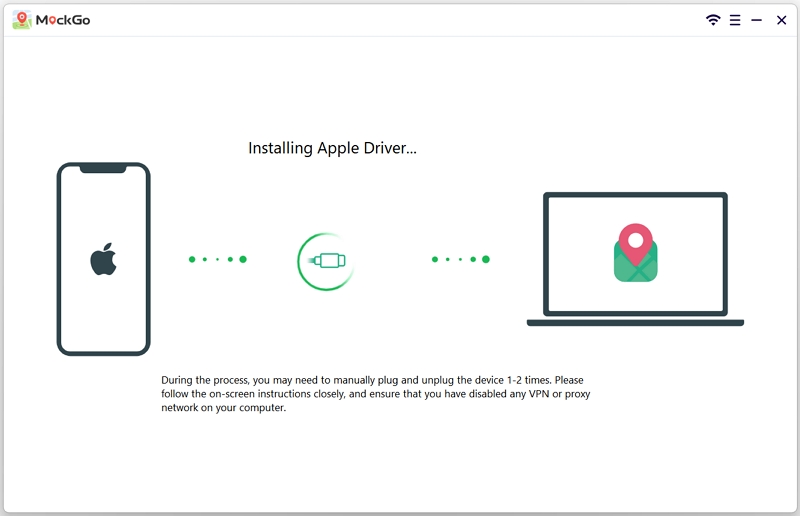
MockGo for Windows version now fully supports iOS 17. Please follow the step-by-step instruction to install the Apple driver and prepare your device for iOS 17 GPS modification.
- Step 1. Connect your iOS device to the computer using the USB cable.
- Step 2. Unlock your device, tap "Trust," and enable Developer Mode if prompted.
- Step 3. During the driver installation process, you may need to manually unplug and re-plug the device 1-2 times. Please closely follow the on-screen instructions and ensure that any VPN or proxy network on your computer is disabled.
Connect the device running iOS 17 on Mac
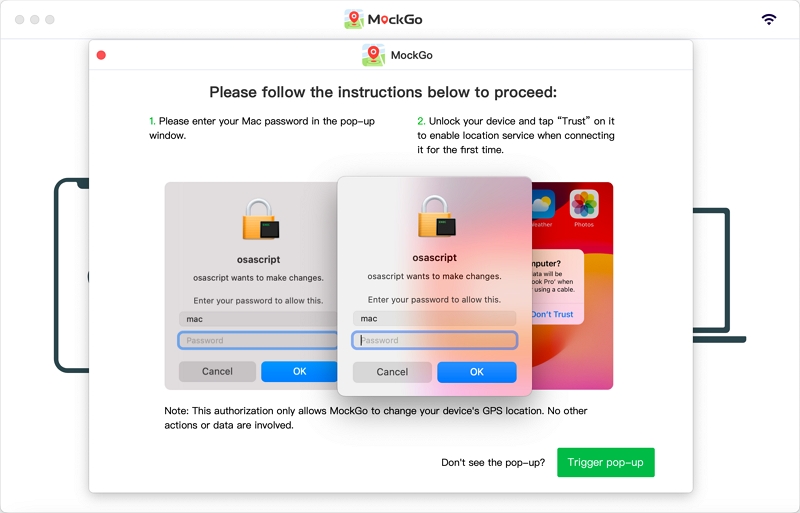
MockGo for Mac is now compatible with the latest iOS 17. To change the location for devices running iOS 17 using MockGo Mac:
- Step 1. Enable developer mode from your device by following the on-screen steps and clicking "Confirm."
- Step 2. After that, enter your Mac password in the pop-up window and please wait 10-20 seconds for MockGo to go through the process.
- Step 3. Then, unlock your device and tap "Trust" on it to enable location service when connecting it for the first time.
This authorization only allows MockGo to change your device's GPS location. No other actions or data are involved.
Connect the device running iOS 16
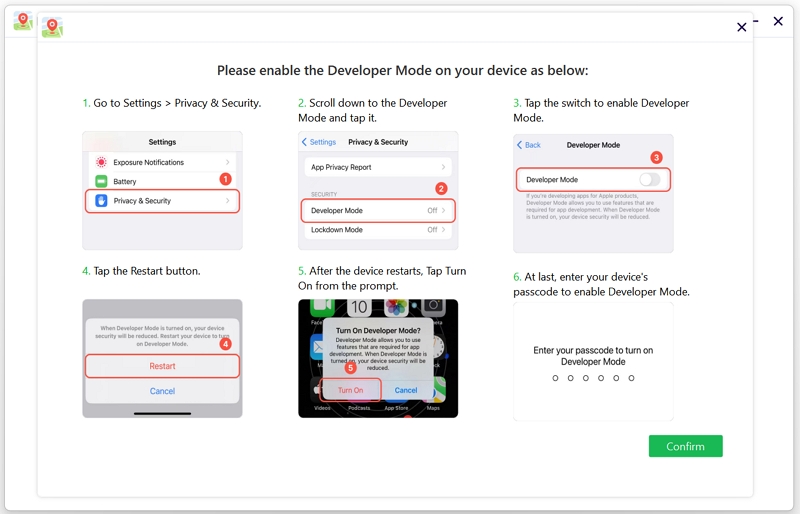
To change the location for devices running iOS 16, simply enable Developer Mode from your device:
- Step 1. On your iOS device, go to "Settings" > "Privacy & Security" > "Developer Mode".
- Step 2. Turn on the Developer Mode toggle and tap "Restart" to reboot your phone.
- Step 3. After restarting, tap "Turn On" and enter your device passcode to finalize.
Connect the device via Wi-Fi
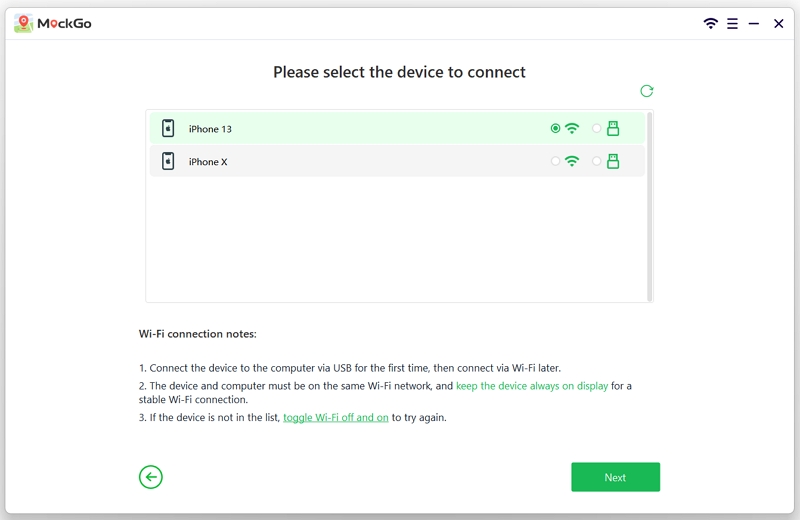
MockGo also allows you to connect your iOS device via Wi-Fi without using a USB cable.
Note: You must connect your device via USB cable at least once before using Wi-Fi connection. Ensure that your computer and iOS device are connected to the same Wi-Fi network.
Teleport Your GPS Location to Any Place
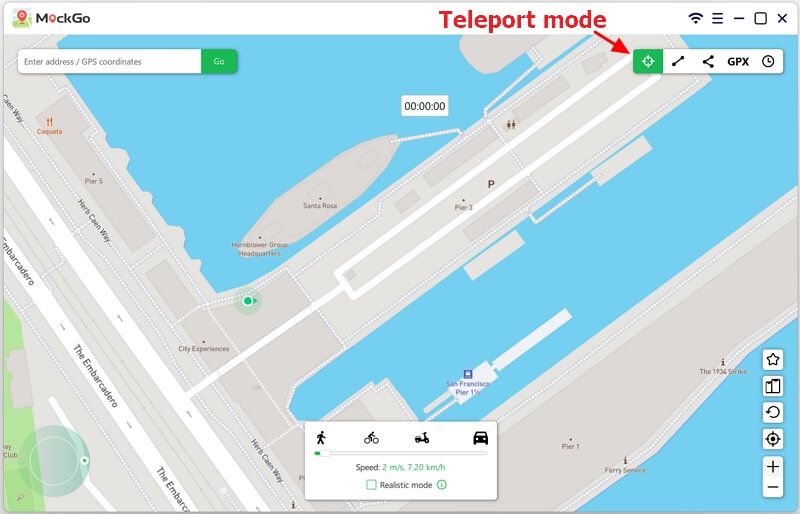
Step 1. When your device is successfully connected, a map will appear on the screen. Click the first icon in the upper right corner to enable "Teleport Mode."
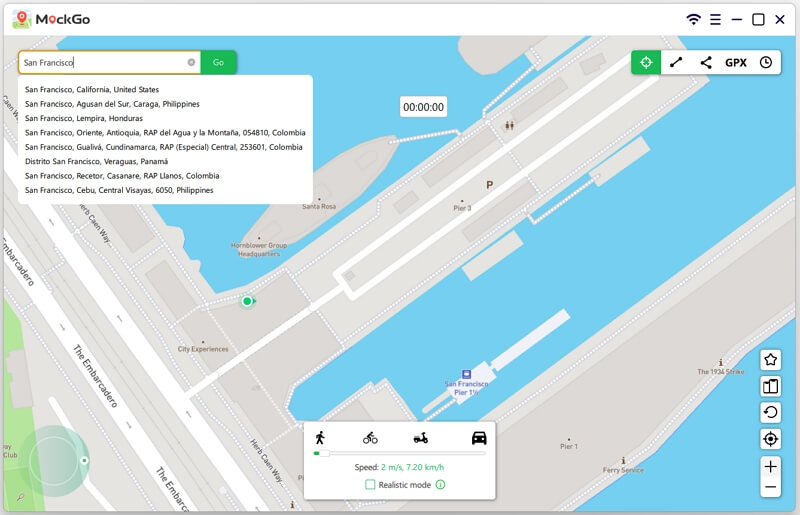
Step 2. Enter the desired location address or coordinates in the search bar, and click the "Go" button to search for the location.
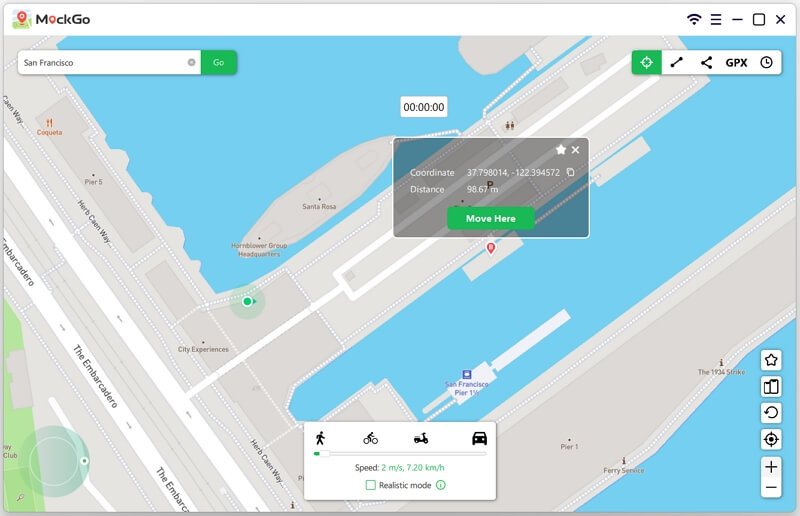
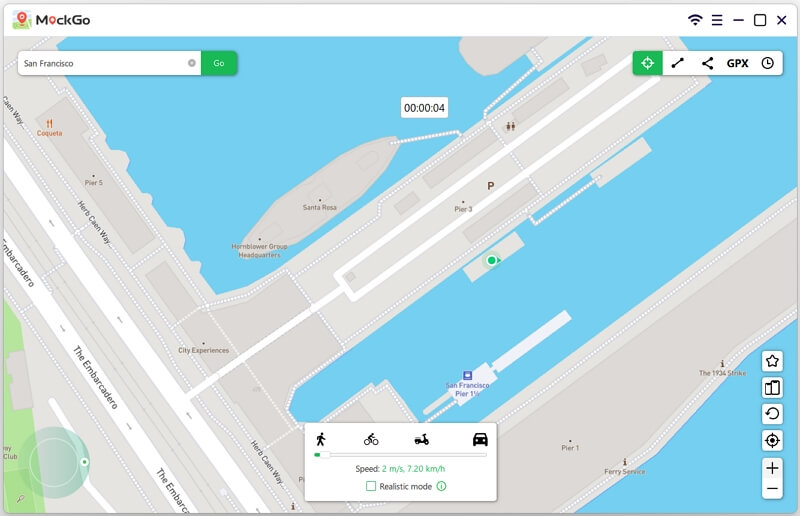
Step 3. MockGo will display the entered GPS location on the map. Click "Move Here" in the pop-up window, and your location will be teleported immediately.
Simulate One-Stop Movement
MockGo also allows you to simulate movement between two points. It will automatically set the route between the start and endpoint along a realistic path. Here's how to do it:
Step 1. Select the corresponding icon (the second one) in the upper right corner to enter "One-Stop Mode."
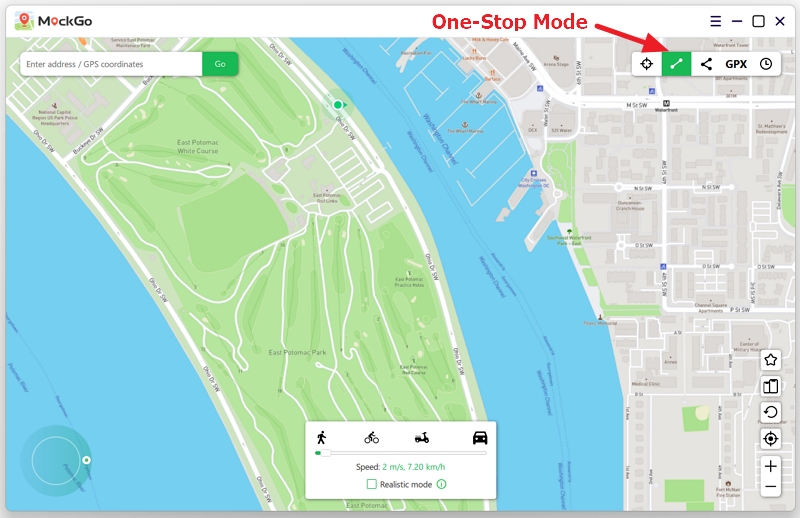
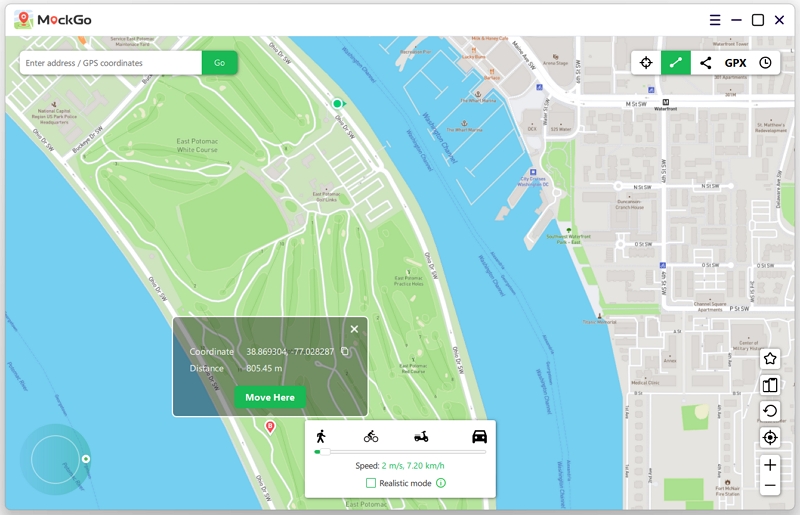
Step 2. Choose a place on the map that you want to visit. The distance and coordinates will be shown in a pop-up. Drag the speed slider at the bottom to set the walking, cycling, or driving speed.
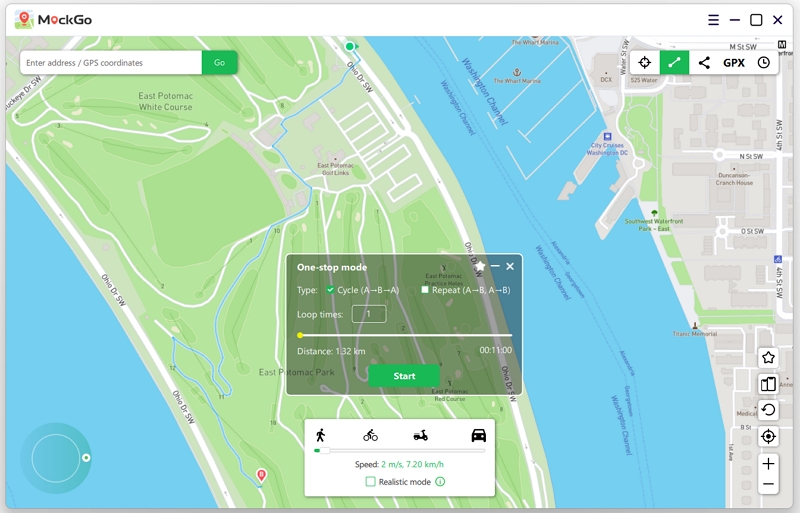
In the pop-up box, you can set the number of repeat times to travel between the two spots and click "Move" to start.
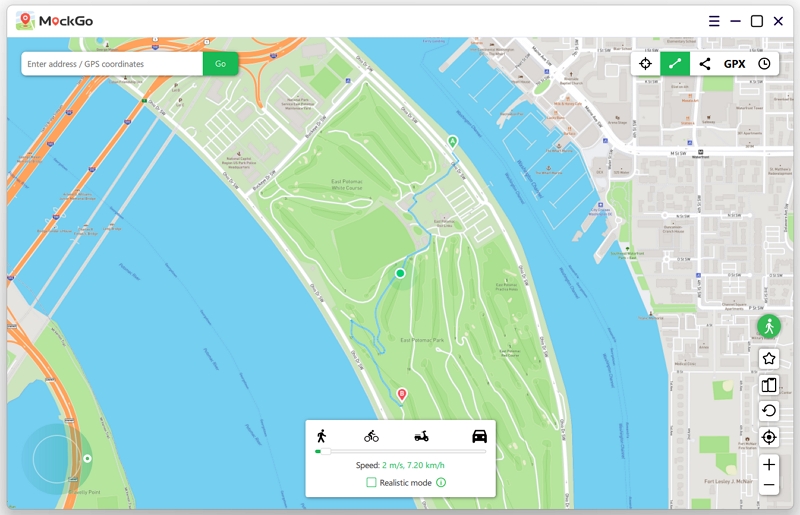
Step 3. Your position on the map will now simulate walking between the two spots at the chosen speed.
Simulate Multi-Stop Movement
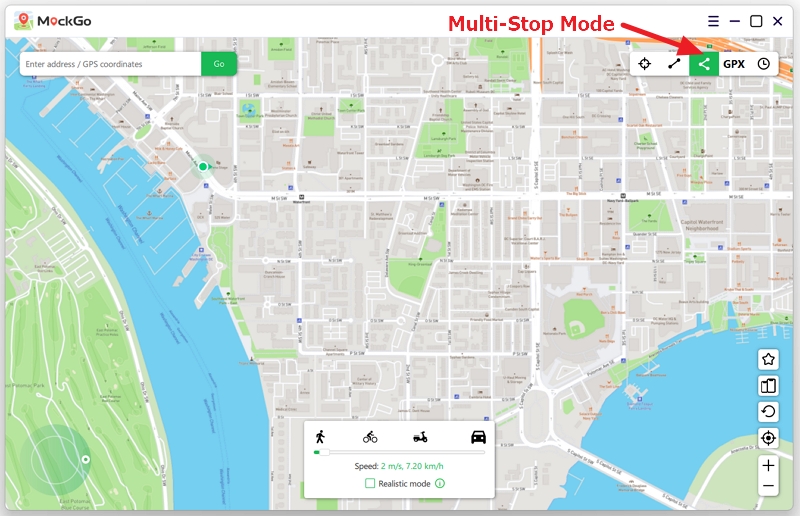
If you want to visit several locations along a path, the "Multi-Stop Mode" is for you.
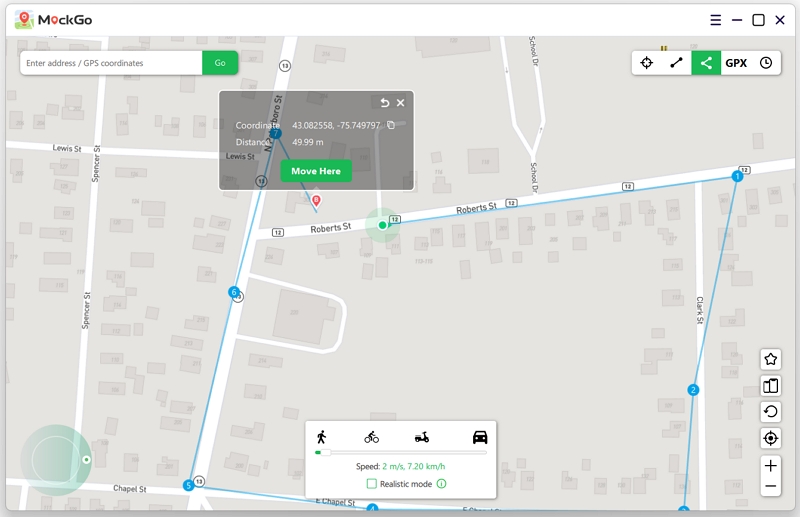
Step 1. In the upper right corner, select "Multi-Stop Mode" (the third option). Then, you can pick and choose which spots you want to move through one by one.
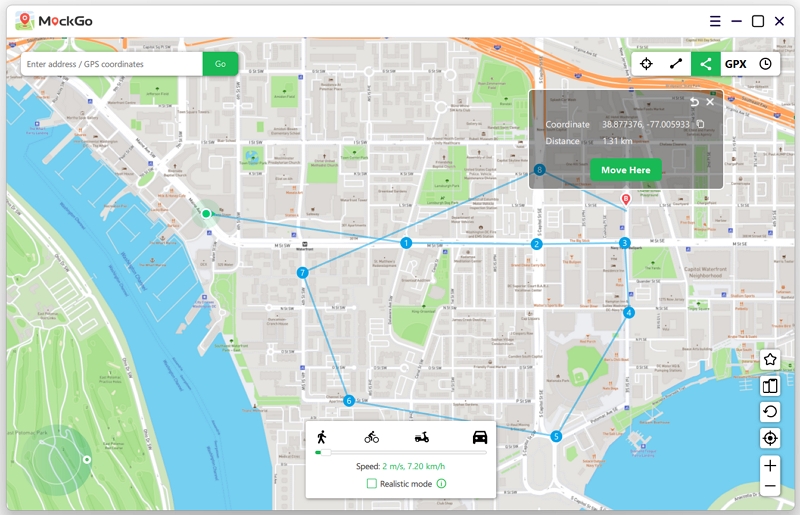
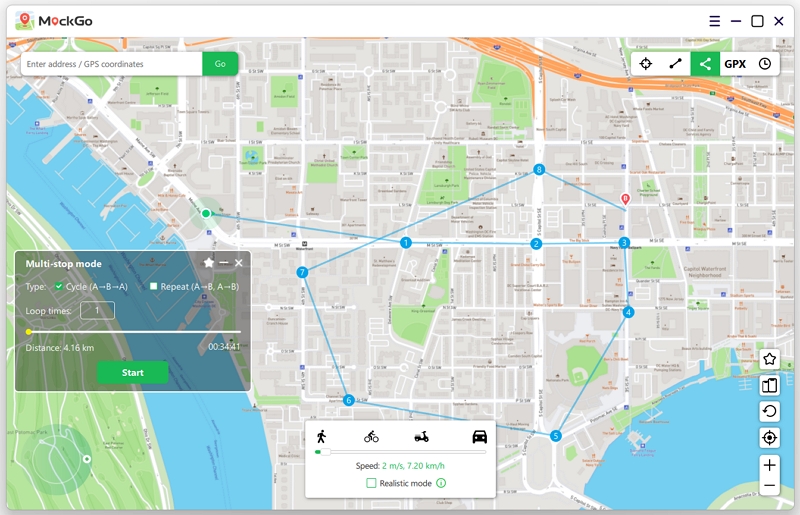
Step 2. Set the speed and number of times you would like to move back and forth along the route, and click "Move" to begin.
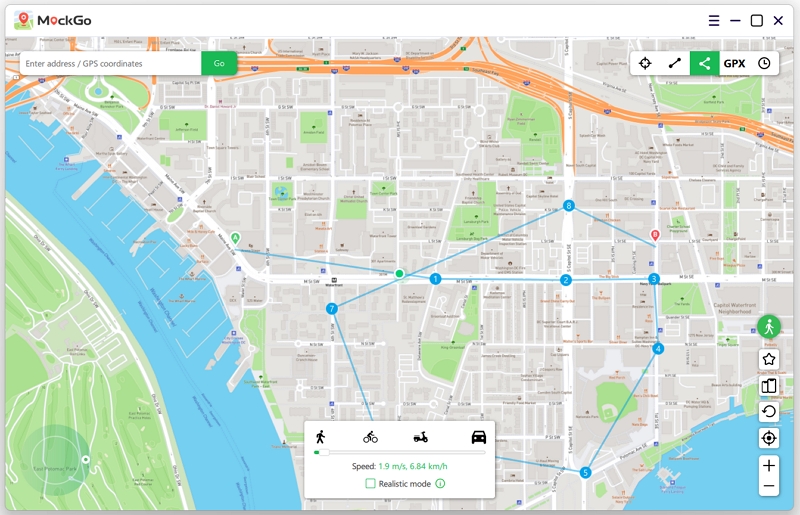
Step 3. Your device will simulate movement along the custom route.
Use Jump Teleport Mode to Teleport the GPS Between Multiple Places
MockGo also allows you to teleport your GPS between multiple places automatically or manually with the Jump Teleport Mode. Here are the steps:
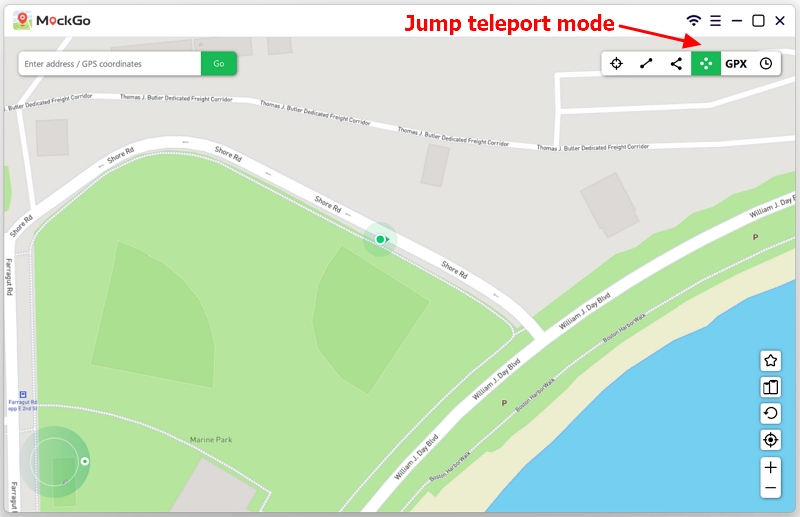
Step 1: Select the Jump Teleport Mode from the fourth icon on the top-right corner of MockGo.
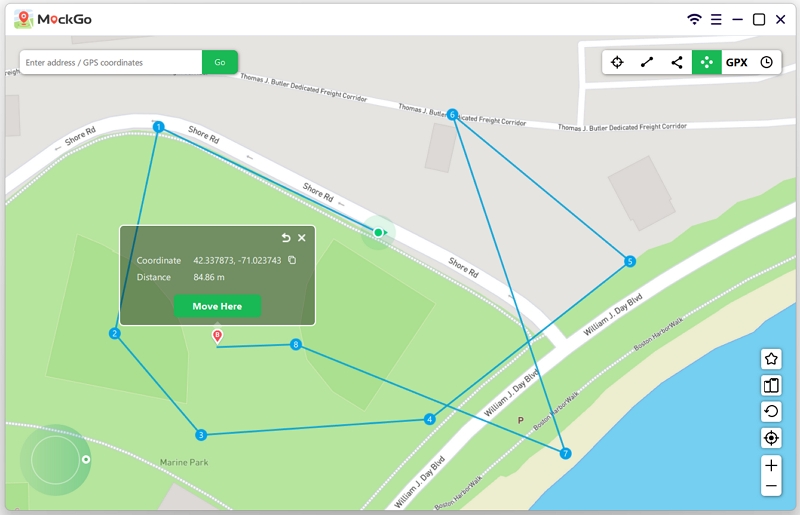
Step 2: Next, select the spots you want to visit one by one on the map. After selecting multiple spots, click the "Move" button.
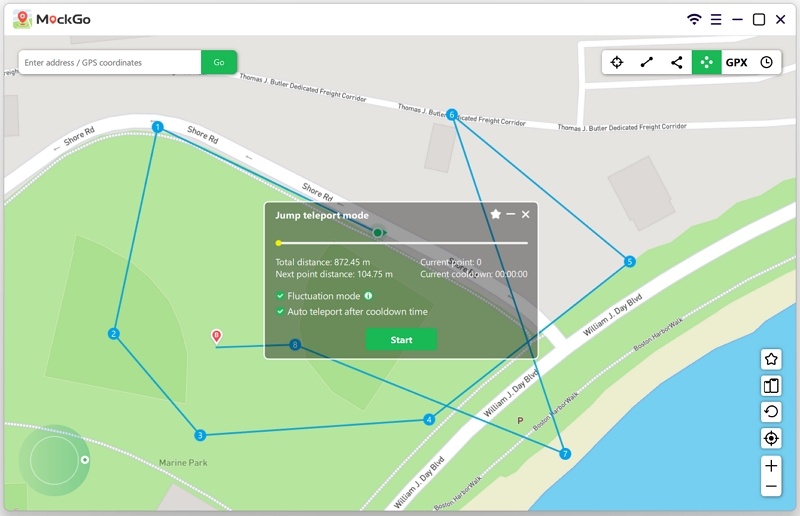
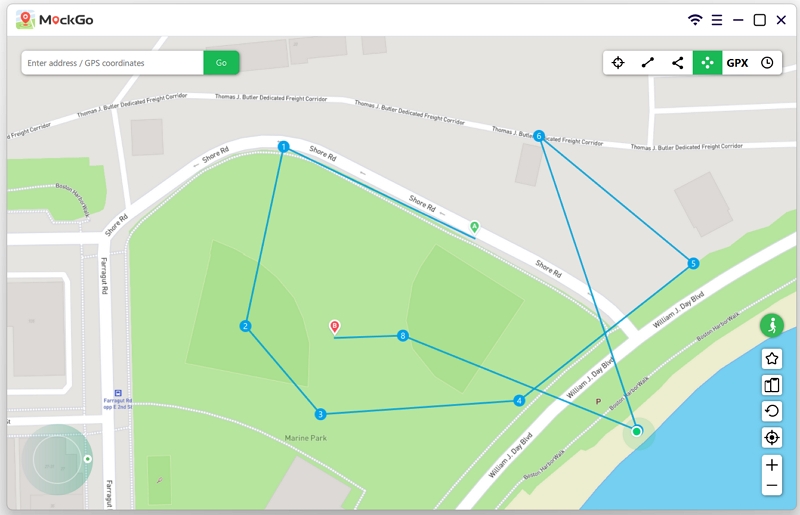
Step 3: Click "Next Point" to jump to the next spot immediately. You can also select the "Auto-jump after cooldown" option.
Use Joystick for Auto or Manual Movement
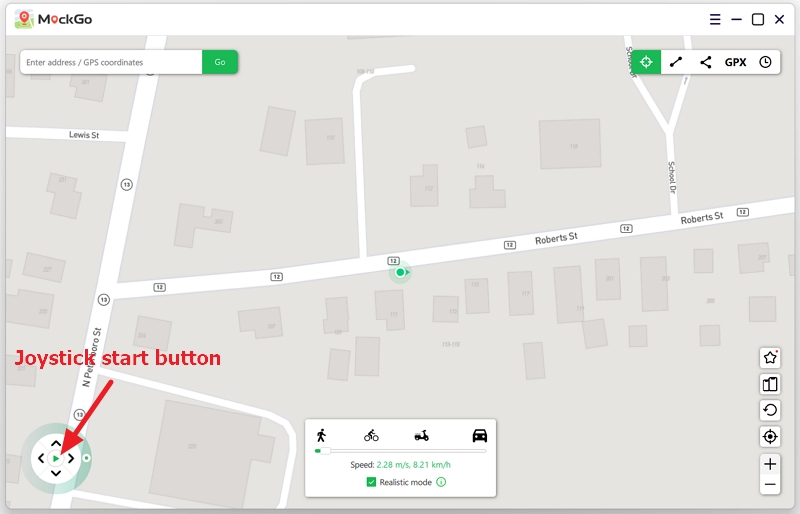
The joystick feature of MockGo can be used to set the movement and adjust the direction to reach the exact location you want. Here is how to use MockGo's Joystick mode:
To start an automatic movement, follow the steps below:
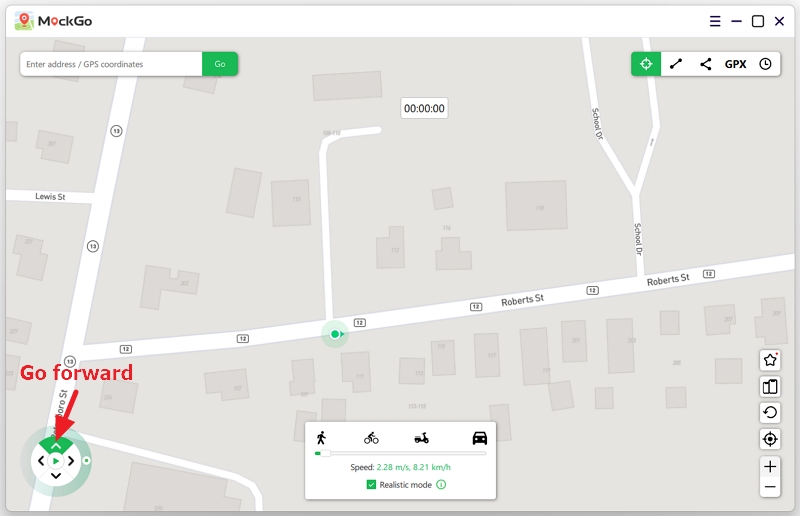
- Step 1. Click the Start button in the center of the joystick and the auto movement will begin.
- Step 2. Click the pause button or stop button to pause or stop the movement.
- Step 3. Click the outer ring of the joystick or use the left/right arrow keys to change direction in real-time.
Manual Movement with Keyboard Keys:
- Press the W or Up arrow key to move forward.
- Press the S or Down arrow key to move backward.
- Press the A / D or Left / Right arrow keys to adjust direction.
Multi-Device Management
MockGo also allows you to change the GPS location of up to 5 iOS devices simultaneously. Here are the steps for using the multi-device management feature:
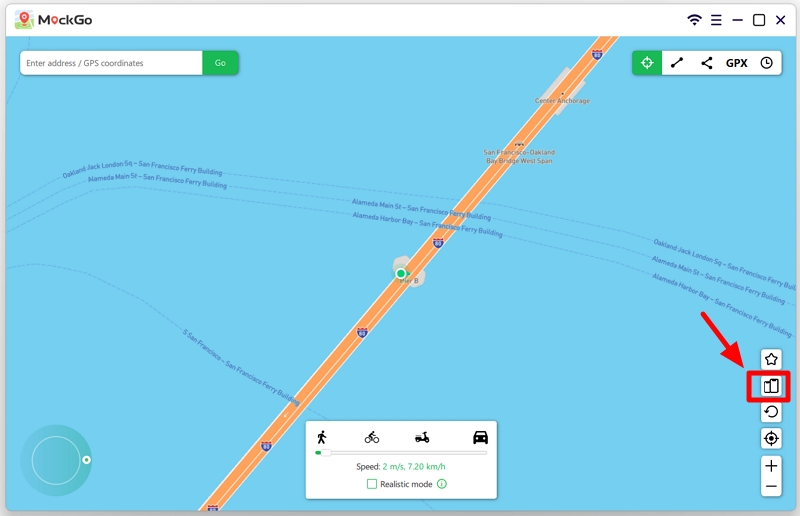
- Step 1. After arriving at the map screen, click the "Multi-device Management" icon in the bottom right corner of MockGo.
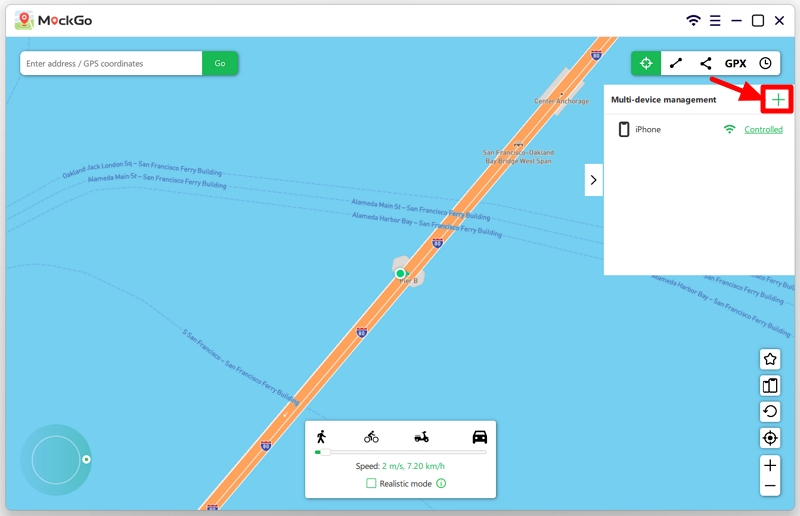
- Step 2. The multi-device control panel will appear. Click the "Add" button to connect another iOS device.
- Step 3. Choose which device to control, and apply location modifications independently.
Import and Simulate a GPX Route
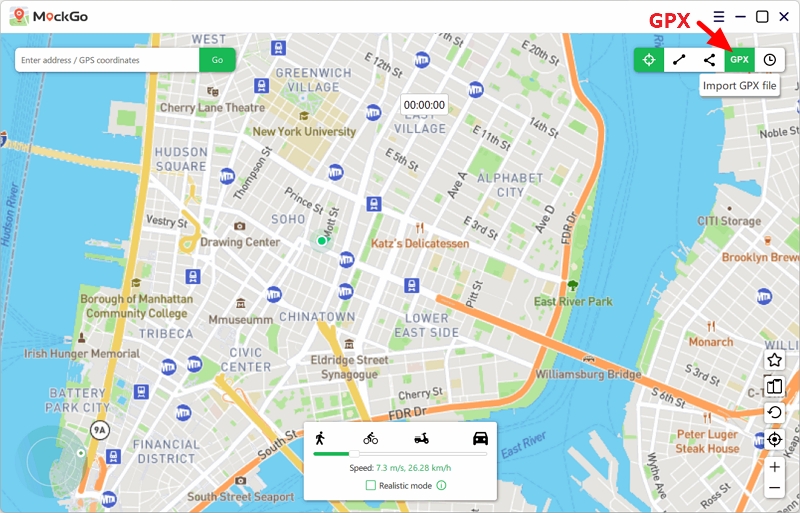
You may get a GPX file from your friends or game forums. Now you can use the GPX feature of MockGo to easily simulate a GPS movement along the route in the GPX file.
- Step 1. Click the GPX icon in the upper right corner to import a GPX file into MockGo.
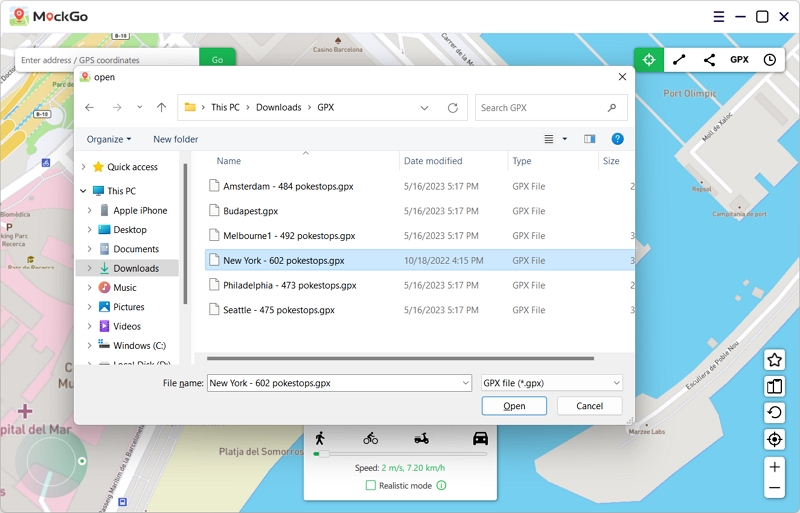
- Step 2. Choose the .gpx route file from your computer.
- Step 3. MockGo will display the GPX route on the map. Adjust your preferred speed and click "Move" to begin walking.
More Features: Cooldown Timer, The Realistic Mode, Closing Path...
1. Cooldown Timer
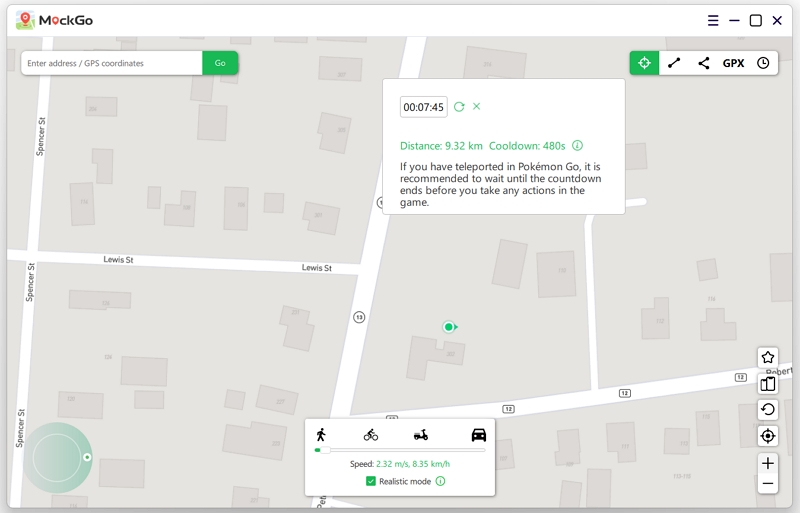
The Cooldown countdown timer is now supported in MockGo's Teleport Mode to help you adhere to the Pokémon GO Cooldown time chart. If you have teleported in Pokémon GO, it is recommended to wait until the countdown ends before you take any actions in the game to avoid getting soft banned.
2. Realistic Mode
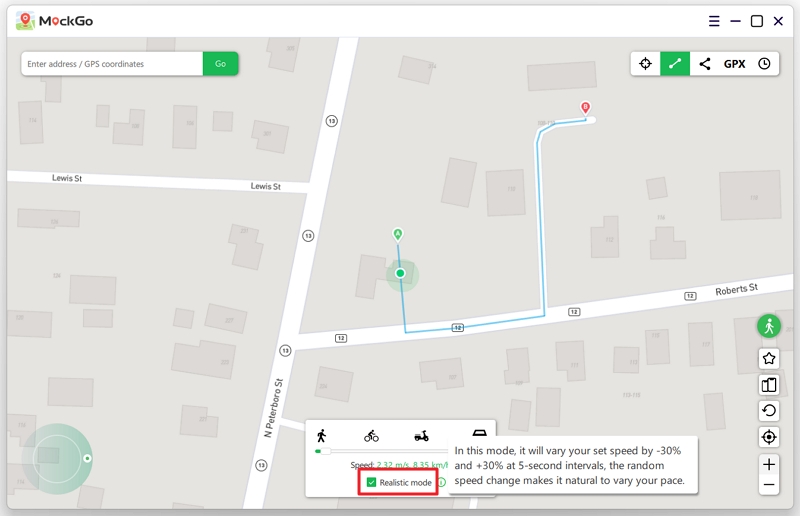
You can enable Realistic Mode in One-Stop Mode and Multi-Stop Mode to simulate natural walking speed by randomly fluctuating the speed within ±30% every 5 seconds.
3. Closing the Path Automatically
When using Multi-Stop mode, if the start and end points are near each other, MockGo will automatically ask if you want to close the path into a complete circuit.
4. Add Location or Route to the Favorite List
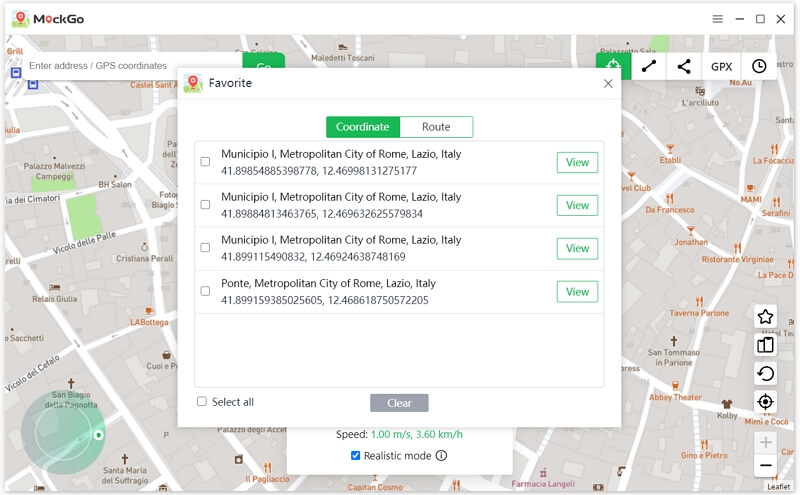
You can collect specific spots or favorite routes by clicking the Star icon so you can access them again quickly with one click next time.